- Introduction – overview of the website and its user-friendly features
- How to Find Products – instructions for locating products using categories, search, etc
- Categories – learn how to browse by product type for quick access
- Search Function – use keyword searches to find specific items fast
- Product Pages
- Image Carousel – enlarge and scroll though images of each product
- Information & Details – tabs contain detailed specs and resources about each product
- Product List – understand page layouts and how related items are grouped
- Using the Red “i” Info Rollovers – get additional information by hovering over red info icons
- In Production – see what it means when items are listed as “in production”
- How to Place an Order – guidance on adding items to your cart and checking out
- Add Items to Cart – steps for selecting quantities and adding products to your cart
- Black “Quick Order” Button – shortcut for users who know item numbers
- The Cart – viewing and updating your cart and how to estimate shipping costs
- How to Check Out – detailed instructions for completing your purchase
- Guest and Registered User Checkout – differences between guest and account checkouts
- Billing and Shipping Addresses – how to enter address information accurately
- International Orders – special instructions for customers outside the US
- Review Your Order – final steps before submitting your order
- Additional Website Features – explore banners, blogs, resources, and customer support
- Banner, Blog, and Sales Items – how to spot current promotions and news
- Additional Resources – where to find guides, social links, and contact information
- Customer Reviews – locating and reading reviews for products and the site
- Questions – how to ask questions or find answers about products or orders
Pro Tip: Don’t forget to scroll down a page! I’ve noticed this is a common thing that people forget to do.
We know this is a lot of information but hopefully this will help you to navigate the Archival Methods website more easily. There are a lot of images in this post to illustrate the website features. On some images I use a yellow highlighter to emphasize relevant areas.
We are available to answer your questions Monday through Friday from 7a – 3:30p ET via phone or email but orders must be placed online at archivalmethods.com
How to Find Products
Categories
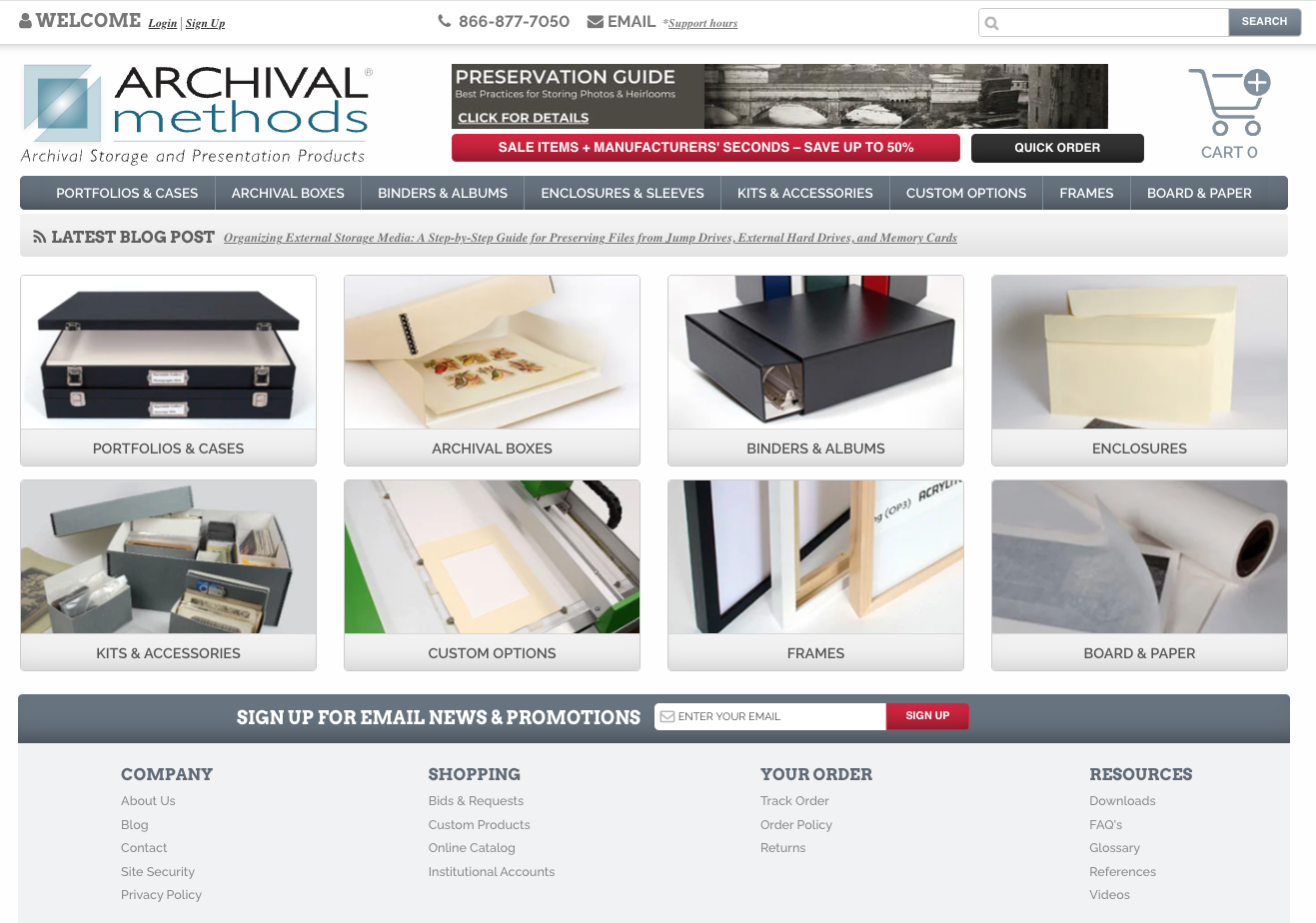
Unlike many contemporary sites, we list multiple products per page. Along the top of our website in dark gray boxes are the high level categories: Portfolios & Cases, Archival Boxes, Binders & Albums, Enclosures & Sleeves, Kits & Accessories, Custom Options, Frames, and Board & Paper. If you click on one of those headings you will see a list of all the sub categories, each with a corresponding image.

If you click on Archival Boxes you will see a list of the different types of Metal Edge Boxes that we offer along with related box spacers. These are followed by the Vinyl Record Storage Box, Rare Book Box with Cradle, Triangular Roll Storage Box, and the Metal Edge Box Seconds (scratch & dent) page. When you click on one of these sub categories it takes you to a product page.
This is a very visual method of searching. Each category is represented by an image. So you can scroll down and quickly assess what is in a category.
In the lefthand sidebar there is also a list of the sub categories. When there is a small arrow to the left of a category you can click on it to reveal another level of sub categories.


The Search Function
Another way to look for something on our website is to use the Search Bar in the upper right hand corner. It’s a fast way to look up specific accessories like gloves, pencils, desiccants, etc. Try searching on corners and you’ll see all pages that relate to corners: Mounting Corners, Frame Corner Protectors, Frame Hardware, and Clear Print Mounting Strips. The search will often have multiple results but it’s usually pretty easy to spot the page you need.

Product Pages
Image Carousel
Let’s go to the Short Top Boxes product page. The first thing you’ll notice is a photo of the product. You can look at the product photos by clicking on the right or left arrows. Mouse over the image and a magnifying glass appears, click on the image to enlarge the window and use arrows to cycle through the image carousel. You will see various aspects of the product and sometimes examples of the product in use with props and other items that we sell.


We try to provide a cover photo that represents an example of what you actually get. Our 35mm Slide Boxes come in packages of three so we show a set of three boxes for the main image.

Occasionally people think that the binders come with pages. Our binders do not come with pages. The exception to this is the Kits section. We have a few Binder Kits that come with pages. To design a kit we bundle several archival components into a useful set. Kit categories are frequently organized by the items they would store, such as photos, slides, objects, etc. Nearly all components in kits can be purchased separately, if desired.

Information & Details
The box to the right of the image gallery has a description and information about the product listed under several tabs. The Specifications tab lists details about the material and its archival qualities. Just click on a tab to see more product information. Some pages also feature a Resources tab. This tab usually has links to instructional PDFs and videos as well as product information sheets.

For Short Top and Hinged Lid Boxes we sort them first by depth/height – shallowest to deepest. And under each category we list the sizes and colors available. Almost all of the dimensions listed for boxes on our website reflect the interior measurements. The red info rollovers usually list both interior and exterior dimensions.

Product List
I’ll use the Vinyl Record Storage Box as an example of page layout. There are three sections for this product page: Vinyl Record Storage Box, Vinyl Record Storage Slipcase, and Archival Sleeves (Polypropylene). Each section has at least one product in it. This page only has five products listed on it while other pages have many more. When you scroll down you get to a section called Related Products.


Using the Red “i” Info Rollovers
We’ve been adding informative rollovers to our web pages. When you see a small red “i” in a circle next to a product or product section, mouse over it for more details. The rollover activates a pop-up window that features a thumbnail image and a list of useful specifications for the product. For the Short Top and Hinged Lid Boxes which have a lot of variations we gave each item it’s own rollover. Whereas the 1-1/2 and 3″ Drop Front Boxes look very similar and simply go up in standard sizes so we only put a rollover for each section and these are sorted by box color.

These rollovers are especially useful on the Print and Slide Pages section. This is because there is a lot of relevant information to convey about each different binder page. Page capacity means if you put the photos back to back two pockets would hold four images. We also calculated the package capacity so you don’t have to do the math!
In Production
If you see a note like the one below that says “In Production” on an item it means that there are currently none in our inventory. We try to keep our shelves stocked but sometimes we can’t. If the box that you want is listed as in production we recommend that you order the box. This makes it a priority to get it on the production schedule to be made. Most boxes that are not in stock when ordered will ship within 1-2 weeks.

How to Place an Order
Add Items to Cart
Now that you know how to navigate our website to find the items that you need it’s time to buy them. Let’s use Document Boxes to illustrate how to add items to your cart. When you are on a product page don’t forget to scroll down to see all of your options. Let’s say we want to order five Tan Letter Size Document Boxes and five Gray Legal Size Document Boxes. The tan letter size is the first product listed on this page and it is item #03-005.

After the item # you will see three prices listed in that row. These are quantity pricing. The first pricing column is for purchasing one (QTY 1), next is for getting two through nine (QTY 2-9), and the last is for buying ten or more (QTY 10+). The last column is labeled Order and it is where you enter the desired quantity. Enter quantities of 5 for the 03-005 and the 03-515 and click on any of the red Add to Cart buttons. Since you are getting a total of ten boxes you will get the 10+ quantity pricing.
The Black “Quick Order” Button
The black Quick Order button under the banner is useful when you know your item number. Click on it to open a pop-up window where you can enter the item number and quantity and add it to your cart.

Once you’ve added the item to your cart the window updates and lists the item and quantity that you just added so you can verify that it is correct. You can add another item SKU and quantity and repeat until ready for check out.

The Cart
When you add something the cart pops open on the right side of your screen. You can close the cart by clicking the Cart or Continue Shopping buttons. To open your cart click on the small cart icon in the upper right corner of your screen.

The cart shows the total cost before adding shipping or taxes (only New York customers pay sales tax currently). If you want a shipping estimate, Enter Zip Code in the box and click on the small gray arrow. If you have a promo code enter it and click the small gray arrow.
Many of our sales require a Promo Code. If you want a promo code, scroll to the bottom section of our website and enter your email to sign up for our mailing list. We send a monthly newsletter and occasional sales announcements that tell you the promo code and dates of upcoming sales. When you sign up for our email list you’ll get a thank you code to use on your next order.
The bottom section of the cart lists the products, quantities, and pricing. There is an image for each page but it will not always match what you are buying. You can read the product name and check the item number to verify it’s what you want. You can adjust the quantity or click on the small trash can/remove to adjust what’s in your cart.
How to Check Out
Guest and Registered User Checkout
In the cart click on the red Check Out button. This opens a pop-up window where you can check out as a Guest or as a Registered User if you’ve made an account. If you want to make an account, click the link in the bottom left of this window called Create an Account and fill out the online form.

If you make an account it will save your shipping address (we do not save credit card information) and it lets you see your past orders. When checking out as a Guest you will enter your email address and click on the “I agree to the privacy policy” before you click on the red Enter button.
Billing and Shipping Addresses
The next page will ask for your billing and shipping addresses. The billing address and zip code must match the one on the credit card you are using. Once you fill that out you go to the shipping address. If your shipping and billing address is the same just click on the Same as Billing box and the information will auto-fill. If different then fill out this section before proceeding. If you are local or passing through Rochester you can click on the Warehouse Pick Up button. A small star indicates fields that must be filled in before you can proceed.

Once you’ve filled out the necessary fields click on the red Proceed button in the bottom right. If you entered something incorrectly a pink warning will pop up. You will need to fix it before proceeding to the next page. In this example there is no such address and the computer rejected it. In your case, read it over to make sure all the information is filled out and correct.

International Orders
If you live outside of the United States your checkout process will look different. We have partnered with Zonos to service our international customers. This also applies to people who have a billing address outside of the US even if they are shipping it within the US.
Once you select “proceed to checkout” you will be presented with the Zonos International Checkout page where you will be provided with international shipping costs as well as duties and taxes for your shipment.
Upon completion of your order, Zonos will charge your credit card for the entire purchase. We will process the order and have the good(s) transported to your international address.
Review Your Order
The next page lists the addresses you entered along with the items you are ordering. You can opt to Add a Preservation Guide & Catalog for $3 to your order. Choose Shipping Option is the next step. Open this dropdown menu to see your options and pricing. Orders over $375 qualify for free ground shipping in the continental US.


The last section is for payment. We accept credit cards and PayPal. If you need to include brief Special Instructions there is a box here. Once you’ve entered your payment information click Submit Order. Once the order is done processing (please be patient as it may take a few seconds) you will get a confirmation message along with your order number. You should also get an email confirmation.
Pro Tip: If your order is not going through you will likely get a Gateway Error message at the top of the page highlighted in pink. One of the most common causes for this is the zip code not matching the credit card you used.
Our turnaround on orders is generally very quick for non-custom and in-stock items. On the day that your order ships an automated email with your tracking number will go out around 5pm. It sometimes ends up in spam folders. To save on paper we no longer include packing slips with orders, so save your order confirmation email as your receipt.

Other Website Features
Banner, Blog, and Sales Items
At the top of our website there is a banner that usually cycles through a few messages. It often directs you to check out a blog post, the Preservation Guide & Catalog, or it tells you when we will be closed for holidays and when there is a sale or promo happening. Below the banner is a large red button labeled Sale Items & Manufacturer’s Seconds. Click on this to see pages featuring our discounted items.

Additional Resources
As with many websites, you’ll find some useful information at the bottom of the page. There’s a place to enter your email to Sign Up for News & Promotions and links to our YouTube, Instagram, and LinkedIn accounts. You’ll find various other information down there such as how to contact us, how to return something, and other resources.

Customer Reviews
You can find customer reviews in two places. At the very bottom right of the website you should find a button labeled Google Reviews which takes you to a list of general reviews from our customers. You can find specific product reviews on the product pages. It’s on the right hand side just above the product information box. You can click to see the reviews.
Questions
Just to the left of the review stars is Q&A. If there is a number next to it that indicates how many questions have been asked. When you click on this you can see the questions and answers about products. If you want to ask a question here there’s a button labeled “Ask a Question” that appears in the upper right corner.


You can also send us an email or give us a call and we’ll do our best to answer your questions in a timely manner.
We hope this has helped you navigate our site with ease!
